WhatsApp 12 min read
How to Move WhatsApp From Another Tech Provider to ZynfoAI
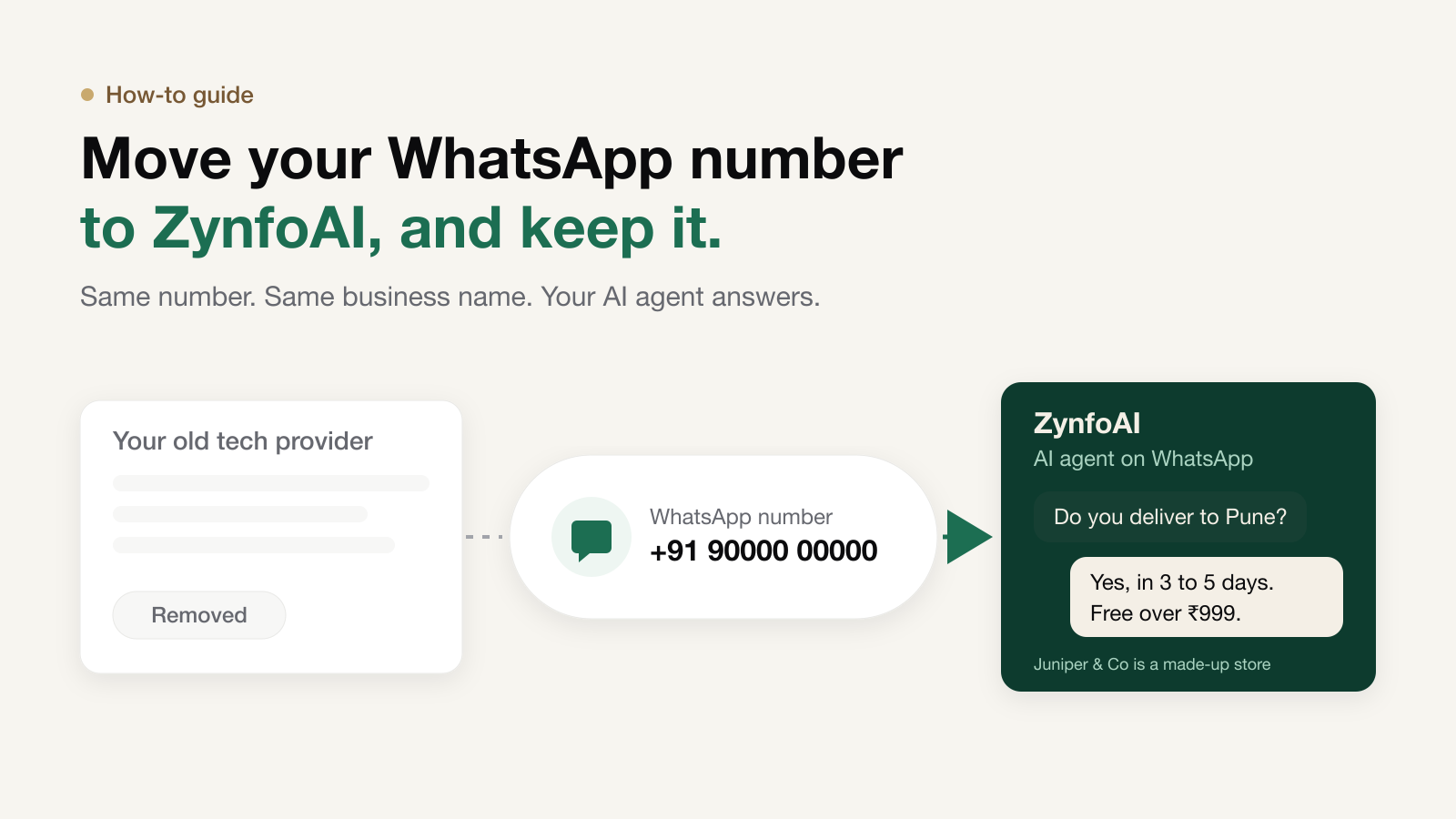
ZynfoAI answers your customers on WhatsApp with an AI agent that knows your website, your documents and your Shopify store. You can move to it from another tech provider and keep the number your customers already have saved. The whole move takes an afternoon of work and one day of waiting. One setting decides whether it works: Meta’s Conversation Routing.
Last updated: 12 November 2026.
Most moves that go wrong fail in the same quiet way. ZynfoAI shows the number as connected, the owner relaxes, and customers keep writing in. But their messages never arrive, because Meta is still sending them to the old tech provider. This guide walks you through the move in the right order, so that doesn’t happen to you.
It’s written for a business that already answers WhatsApp through another tech provider, such as a chatbot tool, a shared inbox or a marketing platform. If you also need to export chats, contacts and templates from that tool, read our guide to switching WhatsApp API provider first, then come back here.
The short version
Your number doesn’t move between companies. It stays in your own WhatsApp Business account in Meta. You add ZynfoAI to that account, tell Meta to send your conversations to ZynfoAI, check that they arrive, and then remove the old tech provider.
| Step | Where | How long |
|---|---|---|
| 1. Connect your number to ZynfoAI | ZynfoAI → Integrations | About 5 minutes |
| 2. Set up and test the AI agent | ZynfoAI → AI agent | An hour or two |
| 3. Make ZynfoAI primary in Conversation Routing | Meta Business Suite | About 5 minutes |
| 4. Send a test message | Your phone and the ZynfoAI Inbox | A few minutes |
| 5. Remove the old tech provider | Meta Business Suite | At least 24 hours after step 3 |
| 6. Cancel the old plan | Your old tech provider | When you’re happy |
Before you start
Four things block more moves than anything else. Check them first.
- You’re an admin on the Meta business portfolio that owns your WhatsApp account. If your old tech provider or a freelancer set it up, ask them to make you an admin before you begin.
- You have the phone for that number. Meta may send a one-time code by SMS or voice call.
- You have a ZynfoAI workspace. Every new workspace gets 7 days with every Pro feature on. No card is needed.
- You’ve picked a quiet hour for step 3, when few customers write in. Pause any broadcasts for that evening.
A worked example
Here’s how the move looks for Juniper & Co, a made-up home goods store with two people on support. Its customers message +91 90000 00000, a dummy number for this example. The number sits in Juniper & Co’s own WhatsApp Business account, and another tech provider’s chatbot answers it today.
On Tuesday afternoon the owner connects the number to ZynfoAI, adds the store’s delivery, return and payment pages, and tests the AI agent with last month’s most common questions. At 10 pm, when the chat is quiet, the owner makes ZynfoAI primary in Conversation Routing and sends “Do you deliver to Pune?” from a personal phone. The AI agent answers within seconds, and the conversation appears in the ZynfoAI Inbox.
On Thursday, more than a day later, the owner removes the old tech provider’s access in Meta and cancels its plan. Customers never notice a thing: same number, same name, faster answers.
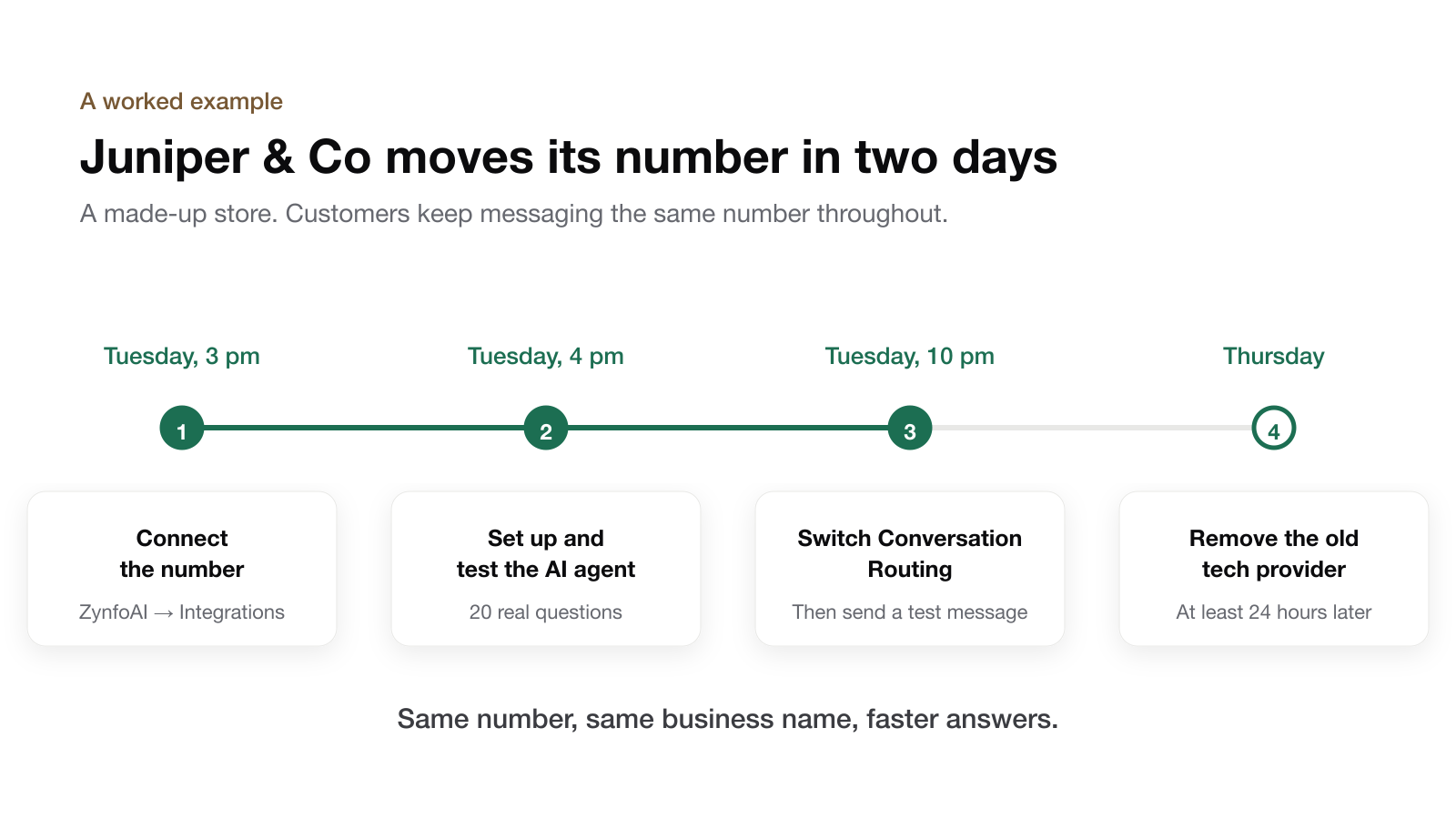
The steps below follow the same order.
Step 1: Connect your WhatsApp number to ZynfoAI
- In ZynfoAI, open Integrations and find WhatsApp Business. Click Connect.
- Sign in to Facebook with the account that’s an admin on your Meta business portfolio.
- Choose your existing business portfolio, your existing WhatsApp Business account and the same number your customers message today. Don’t create a new account.
- Finish Meta’s steps. ZynfoAI now shows the number as connected.
If your number is still on the WhatsApp Business app, Meta’s sign-up lets you keep using the app on your phone alongside ZynfoAI. If ZynfoAI warns that you’ve connected a Meta test number, connect again and choose your real one. A test number can’t reply to customers.
Connected doesn’t mean live. Meta still sends your conversations to the old tech provider, and it will keep doing so until step 3.
Step 2: Set up the AI agent before customers reach it
Do this while your old tech provider is still answering, so no customer ever talks to a half-built agent.
- Add what the AI agent should know: your website, help pages, policies and documents. A Shopify store also connects its catalog, so the agent can answer product, price and order questions.
- Tell it how to behave on the Agent tab: your tone, what it should always and never say, and when to offer a person.
- Choose who answers WhatsApp on the AI agent’s WhatsApp tab: the AI, your team, or the AI only outside working hours.
- Test it like a customer would. Ask the test chat 20 real questions from last month’s WhatsApp chats, including three it shouldn’t be able to answer. Wherever it gets one wrong, fix the source, not the question.
When the AI agent can’t help, Starter turns the request into a help-desk ticket for your team, and Pro can hand the chat to a teammate live. Our guide to what happens when an AI agent can’t answer explains both.
Step 3: Make ZynfoAI the primary partner in Conversation Routing
This is the step that decides where your customers’ messages go. A WhatsApp account can have more than one tech provider attached. For each type of conversation, Meta sends messages to the one marked as primary in Conversation Routing.
- Open Meta Business Suite and go to Settings.
- Under Accounts, choose WhatsApp accounts and select the account with your number.
- Open Conversation routing.
- Change every dropdown from your old tech provider to ZynfoAI: Marketing, Utility, Customer service, Click to WhatsApp and Incoming call.
- Save.
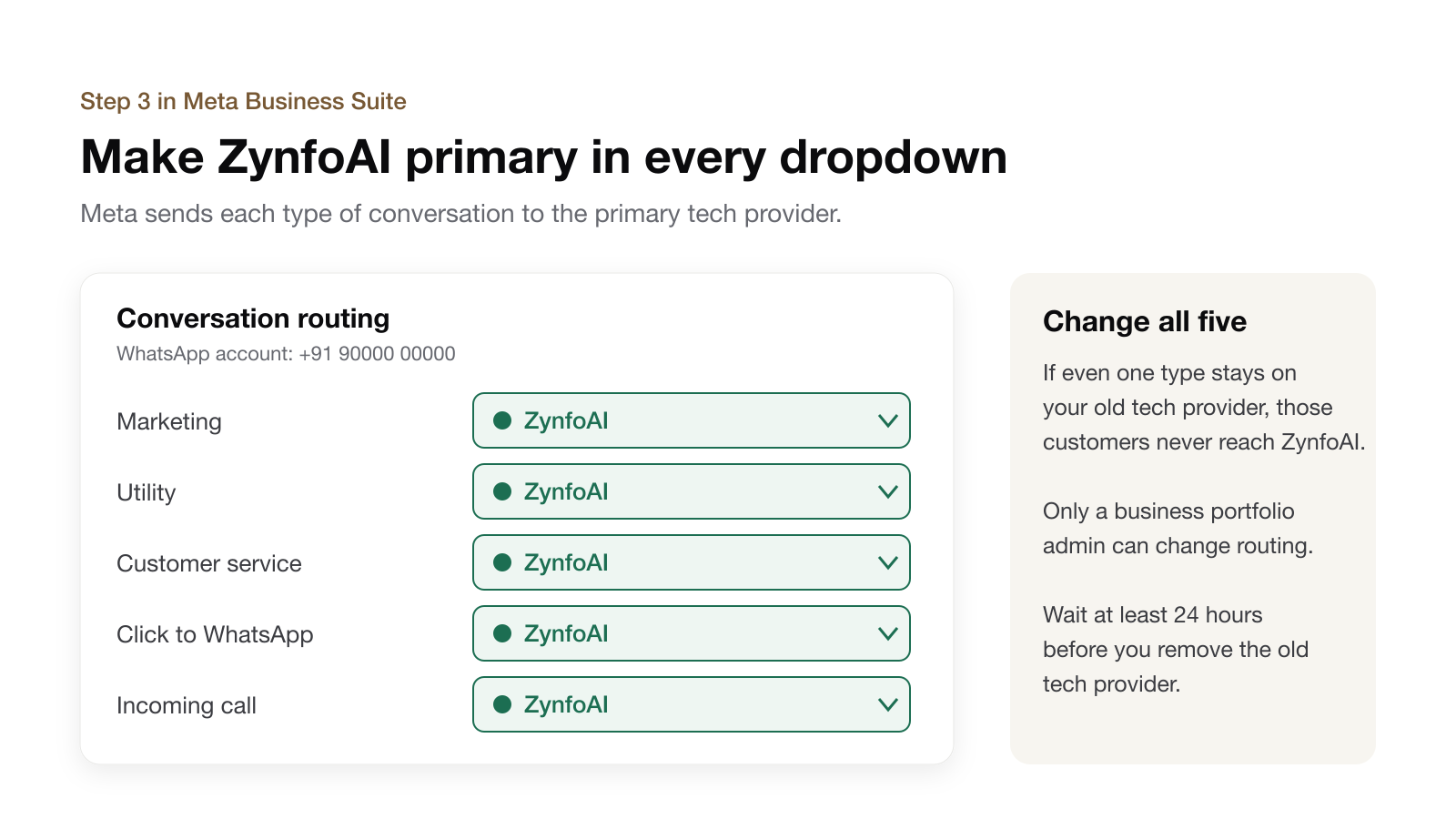
Change all five. If ZynfoAI is primary for some conversation types and your old tech provider for the rest, some customers reach ZynfoAI and the others still land in the old tool, which is harder to spot than nothing arriving at all.
Only a business portfolio admin can change routing. Meta renames its menus from time to time, so if you can’t find Conversation routing, look in the phone number’s settings in WhatsApp Manager.
Step 4: Send a test message
- From a different phone, send your business number a question your knowledge covers, such as “What time do you close today?”
- Check that the AI agent replies on WhatsApp.
- Open the ZynfoAI Inbox and filter by WhatsApp. The conversation should be there, with the reply.
- Ask for a person, and check that your team gets it: a ticket on Starter, a live chat on Pro.
If the message doesn’t arrive, stop and read the troubleshooting section before you change anything else.
Step 5: Remove the old tech provider, a day later
Meta won’t let you remove a tech provider while it’s still primary for any conversation type, and it asks you to wait at least 24 hours after changing routing. Try too early and you’ll see a message along these lines: “You can’t remove [tech provider] because it’s the primary partner for … conversations in conversation routing. Update conversation routing … then wait at least 24 hours before removing it.”
Once a day has passed:
- In Meta Business Suite, go to Settings → Accounts → WhatsApp accounts and select your account.
- Find the old tech provider among the account’s partners and open Manage assignments.
- Click Remove access.
Removing access can’t be undone, so only do it once step 4 has worked. Until then, your old tech provider can still send template messages, such as broadcasts, from your number. Pause them in the old tool.
Step 6: Cancel the old plan
Removing a tech provider’s access in Meta doesn’t end your subscription with them. Cancel it in their tool, and check the notice period first so you don’t pay for an extra month. If you shared API keys or webhook links with them, rotate those too.
What carries over, and what doesn’t
Everything that lives in your Meta account stays yours. Everything that lives inside the old tool stays there unless you export it.
| What | After the move |
|---|---|
| Phone number and display name | Unchanged. Customers see the same business |
| Meta’s message fees | Still billed by Meta, by country, exactly as before |
| Chat history in the old tool | Not moved. Export it before you leave |
| Contacts and tags in the old tool | Not moved. Export a CSV and import it in ZynfoAI under WhatsApp → Contacts |
| Bots and flows | Not moved. Rebuild them as AI agent instructions and workflows |
| Approved templates | Sync them on ZynfoAI’s WhatsApp Templates tab, or recreate them. Templates and broadcast campaigns are on the Pro plan |
Troubleshooting
ZynfoAI says connected, but no WhatsApp messages arrive
Your old tech provider is still primary in Conversation Routing for some or all conversation types. Go back to step 3 and check every dropdown.
ZynfoAI isn’t listed in the Conversation Routing dropdowns
ZynfoAI isn’t attached to that WhatsApp account. Connect again from ZynfoAI → Integrations, and make sure you choose the business portfolio and WhatsApp account that hold your number.
Meta won’t let me remove the old tech provider
It’s still primary for at least one conversation type, or fewer than 24 hours have passed since you changed routing. Fix the routing, wait a day, and try again.
Messages arrive, but the AI doesn’t reply
Open the AI agent’s WhatsApp tab. If it’s set so your team answers, messages wait in the Inbox for a person. Check your plan as well: on Free, the AI answers up to 100 messages a month, and your team can’t reply from the Inbox.
My replies from the Inbox aren’t delivered
WhatsApp only lets a business send a free-form message within 24 hours of the customer’s last message. After that window, you need an approved template.
Your checklist
- You’re an admin on the Meta business portfolio that owns the number.
- You’ve exported anything you need from your old tech provider.
- You’ve connected the same number to ZynfoAI under Integrations.
- You’ve tested the AI agent with 20 real questions.
- ZynfoAI is primary in every Conversation Routing dropdown.
- A test message from another phone got a reply and appears in the Inbox.
- You removed the old tech provider at least 24 hours after changing routing.
- You’ve cancelled the old plan.
FAQ
Can I move my WhatsApp number to ZynfoAI without losing it?
Yes. The number stays in your own WhatsApp Business account in Meta. You add ZynfoAI as a tech provider, make it primary in Conversation Routing, and then remove the old one.
Why does ZynfoAI show as connected but get no messages?
Because Meta still routes your conversations to your old tech provider. Make ZynfoAI the primary partner in every Conversation Routing dropdown in Meta Business Suite.
How long does the move take?
Connecting and changing routing take a few minutes each. Allow an hour or two to set up and test the AI agent, then wait at least 24 hours before Meta lets you remove the old tech provider.
Can I keep using the WhatsApp Business app on my phone?
If your number is on the WhatsApp Business app, Meta’s sign-up lets you keep using the app alongside ZynfoAI.
Do I need a paid plan to answer WhatsApp with ZynfoAI?
No. Every new workspace gets 7 days with every Pro feature on. After that, AI replies on WhatsApp work on every plan, including Free with 100 AI replies a month. Starter is $39 a month with 1,000 AI replies. Broadcast campaigns, templates and live chat handoff are on Pro, at $99 a month.
Will Meta charge me more after the move?
No. Meta bills WhatsApp message fees directly, by country, whichever tech provider you use. Our WhatsApp Business API pricing guide explains how those fees work.
Tools and guides
Put this into practice
AI WhatsApp Reply Generator
Generate high-converting, professional WhatsApp sales and support replies with AI.
SolutionWhatsApp AI Chatbot Platform
Automate customer support and sales over official WhatsApp Business API.
Free ToolWhatsApp Chat Widget Generator
Build a custom floating WhatsApp button to embed on WordPress or Shopify.
FeatureAI with Human Handoff
Escalate complex chats to live agents with complete conversation context.