Shopify 5 min read
How to Reduce "Where Is My Order?" Tickets on Shopify
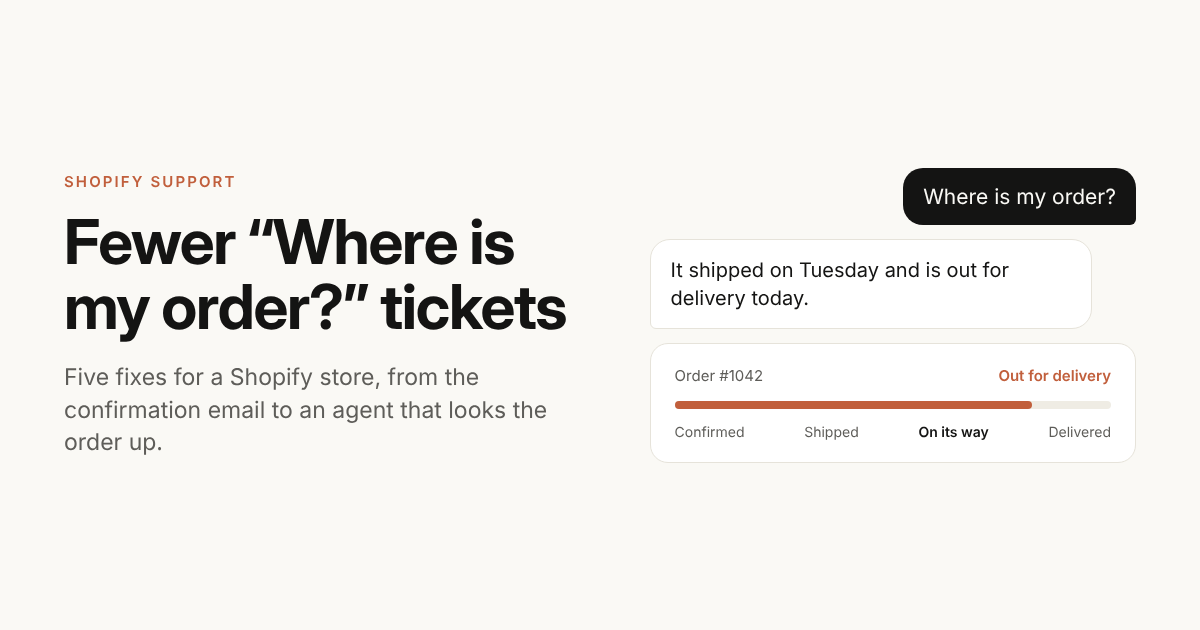
“Where is my order?” is one of the questions online stores answer most often. Support teams call it WISMO. Each ticket is quick to answer, but they arrive all day, and every one means a customer who was worried enough to write.
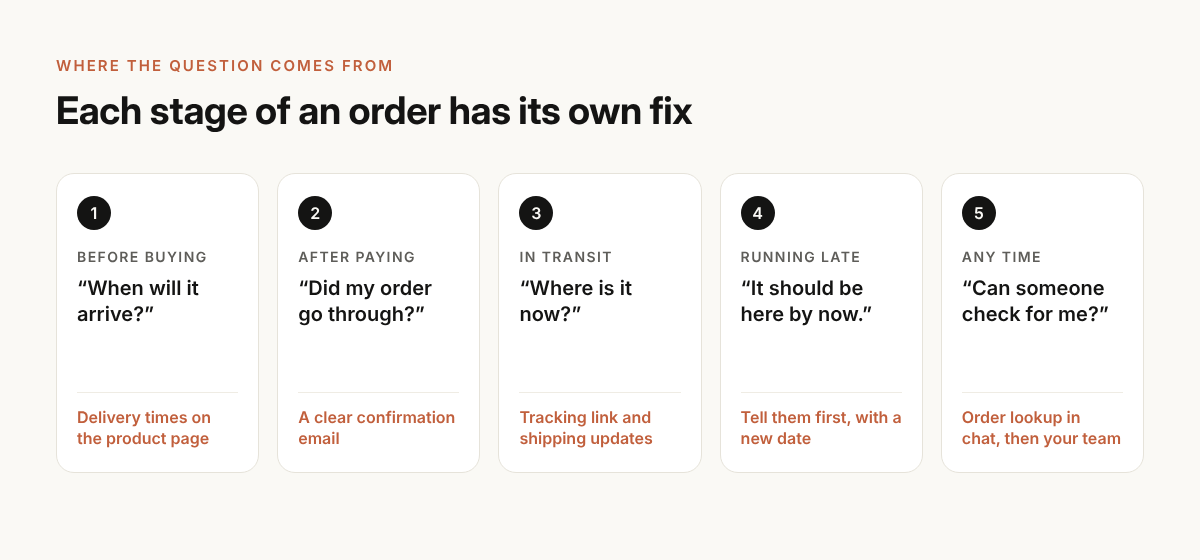
You can’t remove the question. You can answer it before it’s asked, and answer the rest without a person looking up each order. This guide covers five fixes for a Shopify store, in the order a customer meets them.
Why customers ask
People rarely ask because the parcel is lost. They ask because they don’t know what’s happening. Four gaps cause most of it:
- No delivery date before buying. They ordered without knowing when it would arrive.
- A confirmation email that says too little. No date, no next step, no link.
- Silence between “shipped” and “delivered”. Nothing arrives for days, so they check with you.
- A delay nobody mentioned. The date passed and the store said nothing.
Each fix below closes one of these gaps.
1. Put delivery times where people decide to buy
Show the delivery time on the product page, in the cart and at checkout. “Arrives in 3 to 5 working days” answers the question before the order exists.
Be specific about the things that change the date:
- Your cut-off time. “Order by 2pm, ships today.”
- Days you don’t dispatch. Weekends and holidays.
- Items made to order, with their own lead time.
- Different times for different regions.
Then add a short shipping page that says the same thing, and link to it from the footer.
2. Make the confirmation email do more
Customers read the order confirmation to check the order went through. Use it to set expectations:
- The expected delivery date, not only the order date.
- What happens next. “We’ll email you a tracking link when it ships.”
- A link to the order status page.
- One way to reach you if something is wrong.
Shopify sends these emails for you and lets you edit the templates. See store notifications in the Shopify Help Center.
3. Send tracking, then keep sending updates
Add a tracking number to every fulfilment so the shipping email carries a working link. Then turn on the updates that follow it. Shopify’s customer notifications include emails for shipping updates, “out for delivery” and “delivered”.
Two habits help here:
- Fulfil in Shopify when the parcel leaves. If you mark orders fulfilled a day late, the customer waits a day longer for their link.
- Check the link yourself. A tracking page that says “label created” for three days starts more tickets than it stops. If your carrier is slow to scan, say so in the shipping email.
4. Tell customers about delays before they notice
A late parcel with a message is an inconvenience. A late parcel with no message is a complaint.
When you know an order will be late, write first. Keep it to three things: what happened, the new date, and what they can do if that date doesn’t work. Don’t wait for a perfect answer from the carrier. “It’s delayed and we’re chasing it. We’ll update you by Thursday” is enough.
If a whole batch is affected, such as a stock delay or a carrier strike, put a banner on your store and update your shipping page the same day.
5. Let customers look up their order in chat
Some customers will still ask, often on the channel they already use. If they ask in your website chat or on WhatsApp, the reply should be the order’s status, not “we’ll get back to you”.
This is the part an AI agent can take over. ZynfoAI connects to your Shopify store, so when a customer asks where their order is, the agent looks it up and replies with the status. It can also check a refund’s status and cancel an order that hasn’t been fulfilled yet. Read more on order tracking and the Shopify AI chatbot.
Some questions need a person: a parcel marked delivered that never arrived, a damaged item, a wrong address after dispatch. Set the agent to hand off to your team for these, so the customer isn’t stuck in a loop.
How to tell if it’s working
Measure before you change anything, then again a month later.
- Count WISMO tickets per 100 orders. Tag them in your inbox for two weeks to get a baseline. A ratio is fairer than a raw count, because busy weeks bring more of everything.
- Note when they arrive. Tickets on day one point to the confirmation email. Tickets on day four point to tracking. Tickets after the due date point to delays.
- Read the wording. “Has it shipped?” and “The tracking hasn’t moved” are different problems with different fixes.
Fix the stage with the most tickets first.
Where to start
- This week: add delivery times to your product pages and rewrite the confirmation email.
- Next: make sure every fulfilment has a tracking number and turn on shipping update emails.
- Then: add order lookup to your chat, with a handoff for the cases that need a person. The ZynfoAI webshop chatbot page shows how that works for a Shopify store.
Topics
Tools and guides
Put this into practice
AI Chatbot for E-commerce
Recover abandoned carts, automate order tracking, and boost online store sales.
Free ToolChatbot ROI Calculator
Calculate your projected cost savings, ticket deflection rate, and revenue impact.
Free ToolAI WhatsApp Reply Generator
Generate high-converting, professional WhatsApp sales and support replies with AI.
FeatureAI with Human Handoff
Escalate complex chats to live agents with complete conversation context.